| III. Preliminaries. At this point we want to make
some preliminary settings to make editing easier down the road. |
| A. Turn Off Layers. The exported SVG file
contains a lot of extraneous data that will clutter up the screen and
get in the way during this phase of the operation, so we want to hide
these layers. I would turn off the "cmp_passage," and the
"w2d_Background" layers so the sketch-map image is easier to see.
|
 |
|

|
| B. Turn On Layers. Likewise, you need to make
sure several layers are turned on. First, we need to be able to
see the shot lines and station labels, so you want to turn on the
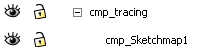
"w2d_Labels" and "w2d_Survey" layers. You also want to makes sure "cmp_tracing"
and "cmp_Sketchmap1" are enabled. |
 |
|
 |
|
 |
| C. Lock Layers. Finally, it is useful to "Lock" some layers
so you don't accidentally disturb then during the editing process. For
example, I usually Lock all the layers except the layer I'm
working on. |
| I almost always lock the Grid Layer because it is
always in the way. |

|
| If you find yourself accidentally moving
layers, just lock them. You can tell which layers are being accidently
moved because that layer will be highlighted right after it moves.
|