|
|
|
Opening Passages |
| VII. Opening Passages.
Up to this point, we have enclosed the entire passage
outline because it makes it easier to draw, merge segments and make masks. However, most cave maps have places where the
passage outline is broken or open. For example, the passage walls are usually open
at the entrance and for passages that continue or haven't been
completely explored. For this reason, we will need to open the passages
in various place along the outline. |
| You begin by zooming in on the portion of
the passage wall that want to open. |
 |
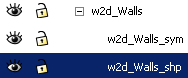
Next, go to the Layers display and select
the "w2d_walls_shp". Make sure it is visible, unlocked and highlighted.
| Finally, choose the "Node Tool from the left
hand tool bar. |
 |
|
 |
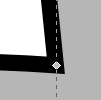
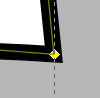
| At this point, we need to select the line
we are going to remove to open the passage. To do this click on the line
itself, (between nodes). The node markers should appear. Click a second
time, and if you look closely, the markers on both ends of your line
should have turned yellow as illustrated by the images to the right.
This means the line itself has been selected.
|
 |
|
 |
| Once the line has been selected, we can
remove it. To remove the line, press the "Delete Path Between Two Non-End
Points Nodes" button. |
 |
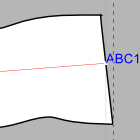
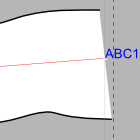
| The line should disappear. You can now
flare the passage walls and draw drip-lines and other features that
pertain to the entrance or passage continuations.
If you have any
trouble, go back and make sure the proper layer and line is selected.
You can undo any accidental changes using the "Edit ->Undo" option from
the menu bar or typing Control-Z. |
 |
|
 |
|
|
|
|