Compass Cave Survey Software Logo - Bats, Compass and Night Sky
Custom Search

COMPASS For Windows
Compass Tour
New Features: 99-11
Cartography Tools
Live 3D Cave Images
On-line Help (New)
Written Description
History: 99-11
Testimonial Letters
Contact Author
Getting COMPASS
Getting Compass
Compass On A CD.
ESRI/ArcView Tools.
3D Glasses
Cave Data
Registration Information
Credit Card Reg.
Reg. Info/Forms
Printable Forms
Tutorials - (New)
Google Earth Overlay
Cartography Tools
Sketch Editor.
SVG Export
Inkscape SVG Maps
Illustrator SVG Maps
SVG Round Tripping
Adopting SVG Maps
Complex Plot Tutorials
Trouble Shoot CaveX
Exporting HPGL
Canvas Digital Map 
ArcView/ESRI
Italian Tutorial
DEM Tutorial
Links
Cave Related Links
User's Pages
User's Group
User Questions
Documents/White Papers
Compass File Formats
ArcView/ESRI
Finding Blunders
Finding Loops
Loop Closure
Least Squares
Survey Blunders
J. Halleck- On Loops
History/Philosophy
About The Author
COMPASS For DOS
DOS Compass Demos
DOS Compass Features
Magazine Review
MISC.
Other Products


<< Last

Top

Next >>

Executing And Saving.

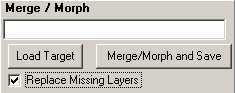
F. Executing And Saving. The Merge. When you are satisfied with all the changes and adjustments, press the "Merge/Morph and Save" button. This will bring up the standard Windows Save dialog that will allow you to chose a file to save the newly merged/morph SVG file.

It is best to choose name for the new file that is different from the source file. That way if you don't like the changes the program has made you can go back to the original version. To protect you from losing your original data, the SVG Exporter creates a four-level backup if you overwrite and existing file.  (The backups will have the extension bak1, bak2, etc.) The program will also warn you if attempt to overwrite the source file.
<< Last

Top

Next >>

<< Home

Custom Search