Compass Cave Survey Software Logo - Bats, Compass and Night Sky
Custom Search
 
 Sponsored Links


COMPASS For Windows
• Compass Tour
• Other New Features
• Cartography Tools
• Live 3D Cave Images
• On-line Help (New)
• Written Description
• Revision History: 99-21
• Testimonial Letters
• Contact Author
Getting COMPASS
• Getting Compass
•Compass On A CD.
• Previous Versions  (New)
Download/Install Issues
• Installation Instructions
• Antivirus Issues
• Authenticating Files
• False Positives
Registration Information
• Credit Card Reg.
• Reg. Info/Forms
• Printable Reg. Form
• 3rd Party Reg. Form
Auxiliary Tools/Information
• Cave Data
• 3D Glasses
• ESRI/ArcView Tools
Tutorials - (New)
• Inkscape Tips and Tricks
• Radio Locations
• Magnetic Anomalies
• Installing Under Win8
• Compass on Mac/Linux
• Google Earth Overlay
• Declination/Convergence
• Cartography Tools
• Sketch Editor.
• SVG Export
• Inkscape SVG Maps
• Illustrator SVG Maps
• SVG Round Tripping
• Adopting SVG Maps
• Complex Plot Tutorials
• Trouble Shoot CaveX
• Exporting HPGL
• Canvas Digital Map 
• ArcView/ESRI
• Italian Tutorial
• Using the Compass CD
• DEM Tutorial
Links
• Cave Related Links
• User's Pages
• User's Group
• User Questions
Documents/White Papers
• Compass File Formats
• ArcView/ESRI
• Finding Blunders
• Finding Loops
• Loop Closure
• Least Squares Papers
• Least Squares Issues
• Passage Modeling
• Survey Blunders
• J. Halleck- On Loops
• History/Philosophy
• SEF File Format (1992)
• About The Author
COMPASS For DOS
• DOS Compass Demos
• DOS Compass Features
• Magazine Review
MISC.
• Betas
• Other Products


Exact Setting and Magnification

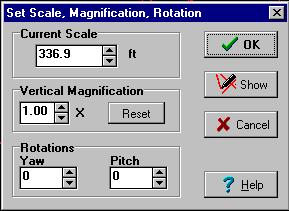
It is often useful to set an exact scale or rotation. For example, you may want to draw a map at exactly 100 meters per inch. COMPASS allows you to set any scale, rotation or magnification. Here is an image of the dialog box that sets these parameters.
Vertical Magnification

The Viewer has the ability to vertically magnify the plot. With vertical magnification, the vertical aspect of the plot is magnified while the other dimensions remain the same. This accentuates the vertical features and it is useful when you are working with a relatively flat cave. Increasing the vertical magnification allows you to see the subtle vertical features in the cave.
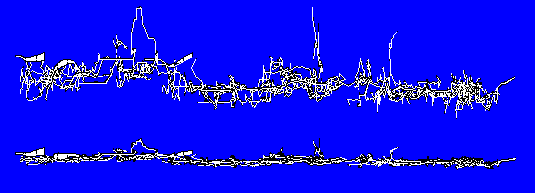
This image shows two profile views of Groaning Cave. The top view has been vertically magnified three times. Although the cave appears to be relatively flat, it is actually developed along several slightly tilted fault blocks. These show up nicely with vertical magnification.

 
 Sponsored Links
Sponsored Links
 Sponsored Links
 Sponsored Links

<< Home

Custom Search